
YouTube Shorts Series: A Simple Guide to New Episodes
YouTube Shorts series are rolling out. Learn how seasons, episodes and custom thumbnails work, what is confirmed, and how to plan your first series.
On this page(26)
- Key Takeaways
- What changes for your Shorts?
- Can you use it on your channel yet?
- How do you set up seasons and episodes?
- Convert a playlist
- Create a show
- Choose the order
- Add episodes
- Change the numbering
- Check your videos
- Prepare the artwork
- Check the viewer's route
- How long should your episodes be?
- What this means for you as a creator
- Plan your first few episodes before making the first
- What if you don't have the series controls?
- Will a series help you get more views or earn more?
- Conclusion
- Frequently Asked Questions
- Is this the return of YouTube Stories?
- Can you use Shorts you've already published?
- Does every episode need to end on a cliffhanger?
- How many episodes should you plan before starting?
- What can you do if the controls haven't appeared?
- Will creating a series increase your earnings?
- Sources
YouTube Shorts are getting seasons and episodes. If you're thinking about making connected stories, or you're already making them, this gives your viewers a logical next episode and a clearer place for all your stories to live.
YouTube announced the Shorts series rollout on 23 September 2026, with custom thumbnails and sequential playback across web, mobile and TV. So, if you've been planning a series, you've now got something more useful to work with than a collection of separate uploads.
Here's what you can do with it, what you need to check in your account, and how to plan a series you'll actually want to keep making. The details below reflect YouTube's guidance as of 29 September 2026.
Key Takeaways
YouTube is rolling out Shorts series, with seasons, episodes and a clearer route to the next video.
Check your own Studio for access before planning around the new controls.
Choose an order that suits your stories, then check it from your viewer's point of view.
Give each episode something worth watching, whether it stands alone or continues a story.
Start with a manageable batch. The new format doesn't guarantee more views or income.
What changes for your Shorts?
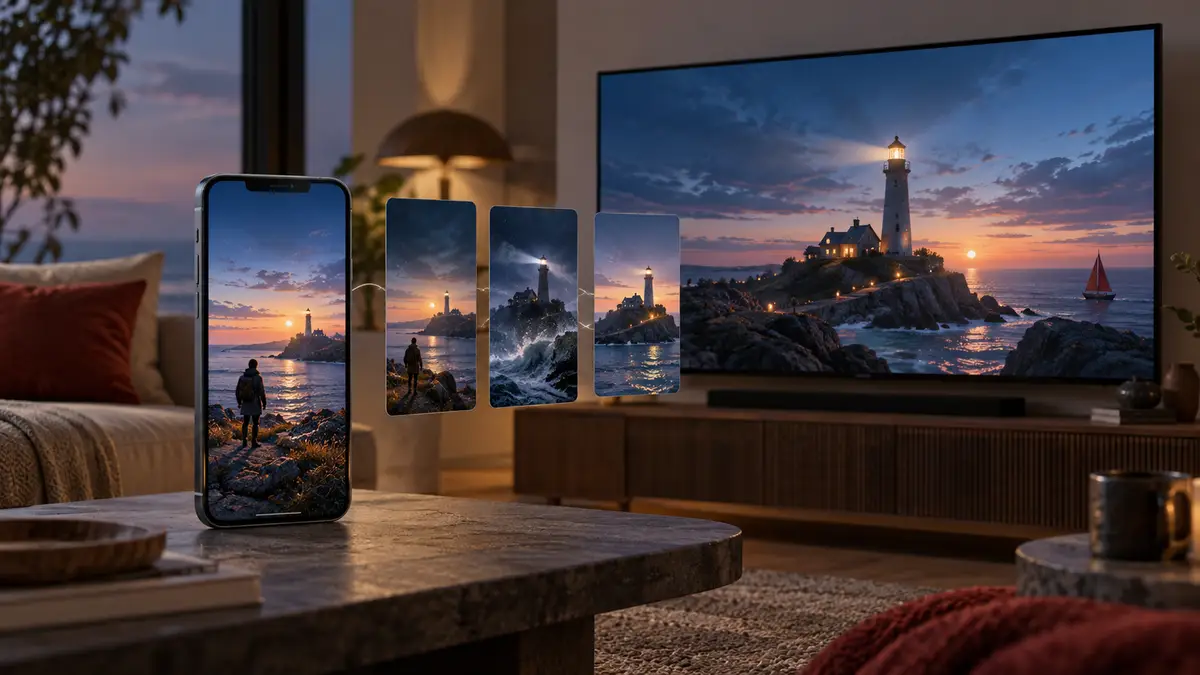
Think about what happens when someone enjoys one of your videos. You want them to find the next one while they're still interested. With Shorts series, you can group your videos into seasons and episodes, giving your viewer a more deliberate way to follow along.
YouTube points to Kinigra Deon and GOKKO CLUB as examples of multipart Shorts storytelling. You don't need to make a drama, though. You might be explaining an unusual event over several episodes, teaching a skill one step at a time, or building a collection of stories around a recognisable theme.
There's already an audience for short episodic stories. YouTube reports 6.5 billion microdrama views in the first half of 2026, with watch time up more than 50% year on year and TV views up more than 90%. Those are figures for the wider format, so they don't tell you what the new feature will do for your own channel. You can read the figures in YouTube's launch announcement.
The useful question for you is this: which of your ideas has enough in it for another episode? Look through your existing videos and the questions in your comments. You may already have a subject people want you to explore further.
Can you use it on your channel yet?
Start by checking your own YouTube Studio. The feature is rolling out, and YouTube hasn't published a date for every account to receive it. If you can't see the controls yet, that doesn't necessarily mean you've missed a setting.
You may also have seen the earlier news about Shows. In August, TeamYouTube said show features for playlists had reached more than three million creators and were available to creators in the YouTube Partner Programme. That was the broader Shows rollout, rather than confirmation that every channel had September's new Shorts series controls. Here's that earlier update.
And if the name has you wondering about YouTube Stories, this isn't their return. YouTube stopped new Stories on 26 June 2023, with existing ones disappearing after their usual seven days. You're looking for Shorts series here. YouTube's original Stories notice explains the closure.
How do you set up seasons and episodes?
Once the controls appear in your account, you can work through the steps below. The menu paths come from YouTube's show setup guide. Start with either an existing playlist or a new show, depending on what you've already made.
Convert a playlist
Already have a playlist of connected Shorts? Go to Studio → Content → Playlists → Options → Add show features. The videos begin in Season 1. Before converting, look through what you've included: does every video belong to the same series, or have a few unrelated uploads crept in? Think of this as tidying the shelf before you put a label on it. You want someone who enjoyed one episode to find more of what they came for.
Create a show
Starting fresh? Choose Studio → Create → New show, enter the details and select Done. Give your show a name that leaves room for future episodes, then write a description that tells your viewer what they'll get. If you're planning a series of short explanations, for example, describe the subject and the kind of question you'll answer. You don't need to promise a new episode every day before you've worked out whether you can make one.
Choose the order
Serial runs oldest first; non-serial runs newest first and is the conversion default. Choose based on how your stories work. If episode two only makes sense after episode one, you want a clear starting point and a sequence to follow. If each episode answers a separate question, your latest upload may be a perfectly good introduction. Check any manual playlist order too, because it affects numbering. Don't assume the upload sequence is the viewing sequence you intended.
Add episodes
Open Content → Shows → Add content and assign a season number. Before you add a batch, jot down which videos belong together and why. A season might follow one connected story or explore one part of a bigger subject. Keep the grouping easy to understand: if you need a long explanation for why a video is there, it may belong elsewhere. You can plan the next batch without cramming everything you've ever made into Season 1.
Change the numbering
Use Shows → Episodes to edit season or episode numbers; other episodes will be renumbered. After a change, read through the sequence again from your viewer's point of view. If a video says “in the last episode”, is that still the episode immediately before it? Check titles and descriptions for old numbers as well. Moving a video in Studio won't rewrite a spoken reference you've already recorded, so catch those mismatches before they leave someone confused.
Check your videos
Every item must be a Short: square or portrait, no longer than 180 seconds. Check the actual uploads you're adding, especially if you're working with an older collection. Then watch them as individual videos. Does each opening give you enough context if you land halfway through the series? A quick reminder can help, but you don't need to retell the whole story every time. Keep the recap short enough that someone watching several episodes doesn't feel stuck on repeat.
Prepare the artwork
Use 16:9 JPG or PNG artwork, up to 10 MB: title or logo on the banner, neither on the backdrop. Prepare the two files separately so you don't accidentally upload the same design twice. For your episode artwork, pick a consistent look while making the subject of each video easy to spot. Shrink your designs to phone size before deciding they're finished. If the words disappear or every episode looks identical, simplify them before uploading.
Check the viewer's route
Try Watch series and its previous/next navigation. Look for Shows on web and mobile, or the Playlists shelf on TV. Then follow the route as if you've never visited your channel before: open an episode, find the next one and see whether the sequence makes sense. Check that your titles distinguish the episodes and that the opening matches what the artwork promised. Your Studio setup can look beautifully organised while still leaving a new viewer wondering where to start.
How long should your episodes be?
You've got up to three minutes for a Short, but you don't have to fill them. If your story works in 45 seconds, let it finish there. Give yourself more time when there's something worth explaining, rather than stretching a short idea to meet a target.
There's a date detail to watch if you're using older videos. For standard channels, square or vertical uploads from 15 October 2024 count as Shorts when they're within the three-minute limit. Earlier uploads keep their existing classification. Official Artist Channels have a different date: 8 December 2025. Putting an older video into a playlist won't change its classification. Check YouTube's three-minute Shorts guidance.
What this means for you as a creator
You don't have to tell one long story to make a series. You can give each episode its own beginning and ending while keeping the same theme, visual identity and tone. Your viewer should recognise what they're watching, even when the subject changes.
That's also what makes a series easier for you to keep producing. You have a format to build on, so you're choosing the next story rather than starting from a blank page every time.
Plan your first few episodes before making the first
Before you get caught up in thumbnails and season names, write down what your series is about in one sentence. Then see whether you can come up with five episodes you'd want to watch. Five is just a useful starting point here, not a YouTube requirement.
This is where our faceless video series can fit straight in.
Choose your first few stories and decide the order you'd like people to watch them. You can group a batch into a season without treating it as the end of the series. Once your videos are ready, use YouTube Studio to organise them into seasons and episodes.
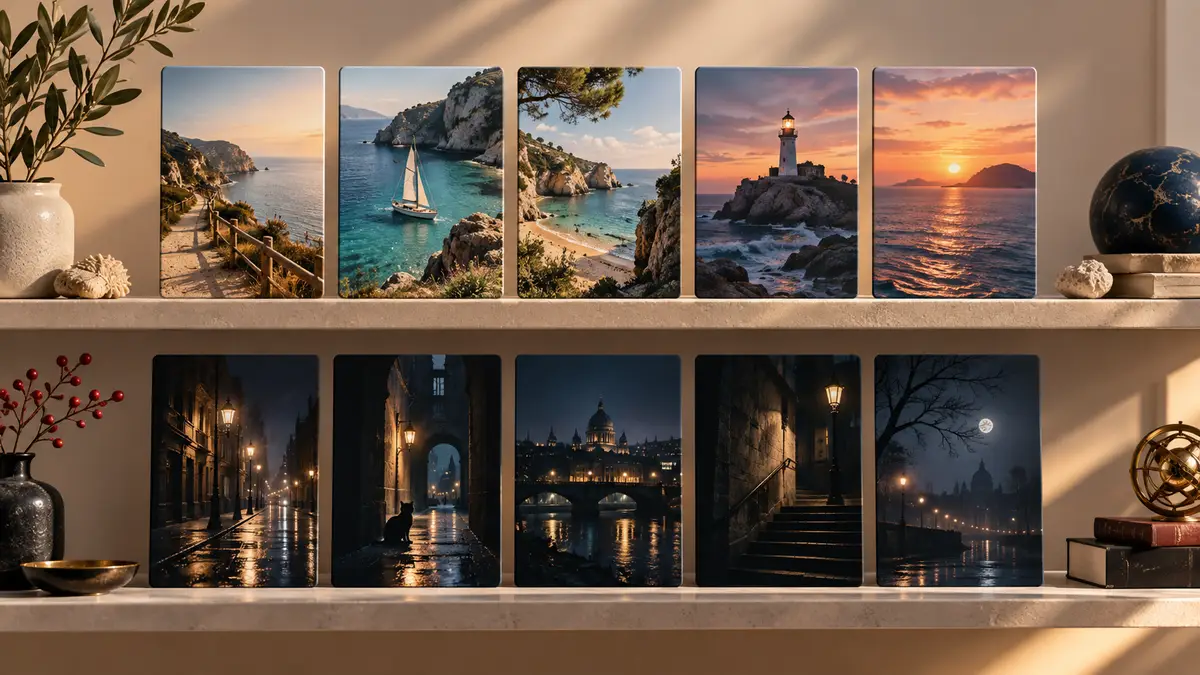
Next, gather your scripts, research, visual references, narration, captions and artwork. Keep the title, episode order, finished file and published link together in a simple sheet. When you move an episode, update the sheet too. It's a small job that saves you wondering which version belongs where.
Before uploading, watch the sequence from the beginning. Can you follow it without your notes? Can you read the text on your phone? Does the ending make you want to continue? Those answers matter more than how many seasons you've planned.
What if you don't have the series controls?
You can still write your scripts, decide the order and prepare your artwork. For videos you've already uploaded, you can also add a related video to a Short: open Content in Studio, choose your Short, select a related video from your channel and save.
You'll need advanced feature access, and the linked video must be public or unlisted. Your viewer gets a clickable link beneath your channel handle. It won't switch on the new series feature, but it gives you an existing way to point someone towards another video. YouTube explains how to add the link here.
Will a series help you get more views or earn more?
You now have another way to organise your videos and help someone continue watching. What you don't have is a promise of extra reach. YouTube's launch announcement doesn't guarantee a recommendation boost, a rollout date for your account or a special revenue rate for series.
You'll still need to check the usual earning requirements. YouTube Partner Programme participation can unlock Shorts revenue sharing and other features, each with its own conditions. You can check those in YouTube's monetisation overview.
Conclusion
If you've been making connected Shorts, this update gives you a clearer way to bring them together. The useful work starts with choosing what belongs in your series, putting it in a sensible order and making sure each episode delivers on its opening.
Open Studio and check for the controls, then choose one small batch to organise. Watch it from the beginning and try joining halfway through. If both routes make sense, you've got a useful starting point for your next episodes.
Frequently Asked Questions
Is this the return of YouTube Stories?
No. YouTube Stories closed in 2023. This update is about organising Shorts into series, so look for the Shorts series and show controls in Studio rather than the old Stories feature.
Can you use Shorts you've already published?
Yes. You can convert a suitable playlist or add existing Shorts to a show. Start by checking which uploads belong together, then review their order. You don't need to remake a useful video just to give it a place in a series.
Does every episode need to end on a cliffhanger?
No. If you're telling one story across several parts, an unanswered question can give your viewer a reason to continue. If each episode tells a complete story, let it finish. Don't cut off the promised answer simply to force another click.
How many episodes should you plan before starting?
Try outlining five as a practical exercise, rather than treating that as a platform requirement. Can you give each one a different angle and a worthwhile ending? If your ideas start repeating by episode three, narrow the subject or try a different approach before producing the whole batch.
What can you do if the controls haven't appeared?
Prepare your scripts, episode order and artwork while you wait. You can also use a related-video link on a Short if your channel has advanced feature access. That gives your viewer somewhere to go next without depending on the new series controls.
Will creating a series increase your earnings?
There's no guaranteed increase. Organising your videos can help your viewer find the next episode, but your results still depend on the videos you make and whether people want to keep watching. Check the monetisation requirements for your own channel before making income plans around the feature.
Sources
Written by
Continue Learning
All guides →
Automate AI Video Production for Faceless Content Workflows
Plan an AI video workflow for faceless YouTube and TikTok channels, from scripting and voiceovers to visuals, editing and consistent publishing.
Boost YouTube Shorts SEO: Evergreen Discovery Strategy Guide
Plan YouTube Shorts around searchable topics, with keyword-focused titles and descriptions that help viewers discover your video library.

How to Guide Your Social Media Algorithm Strategy in 2026
Explore how TikTok, YouTube Shorts and Instagram Reels distribute content, and how engagement signals can inform your content strategy.